The best phone theft protection combines Google’s built-in Find My Device or Apple’s Find My with a dedicated anti-theft app for alarms, photo capture, and remote locking. Built-in tools cover tracking and remote wipe for free, while third-party apps add extras like motion alarms and intruder photos that native tools don’t offer.
Key Takeaways
- Google Find My Device and Apple Find My are free, built-in, and should be enabled on every phone regardless of extra apps.
- Third-party apps like Prey add motion-triggered alarms, intruder photo capture, and SIM-change alerts.
- Android’s Theft Detection Lock (added in 2024, expanded through 2026) can automatically lock your phone if it detects it’s being snatched.
- Enabling a lock screen PIN, fingerprint, or face unlock is the single most effective anti-theft step, more so than any app.
- Combine tracking with remote lock and wipe so a stolen phone can’t be used even if it’s never recovered.
Built-In Theft Protection (Start Here)
Before installing any app, make sure your phone’s native protection is turned on. These tools are free and already built into your operating system.
Android: Find My Device and Theft Detection Lock
Google’s Find My Device shows your phone’s location on a map, lets you play a sound, lock the device remotely, and erase it if recovery looks unlikely. Since 2024, Android has added Theft Detection Lock, expanded through 2026, which uses motion sensors to detect snatch-and-run patterns and automatically locks the screen before a thief can access your apps.
iPhone: Find My
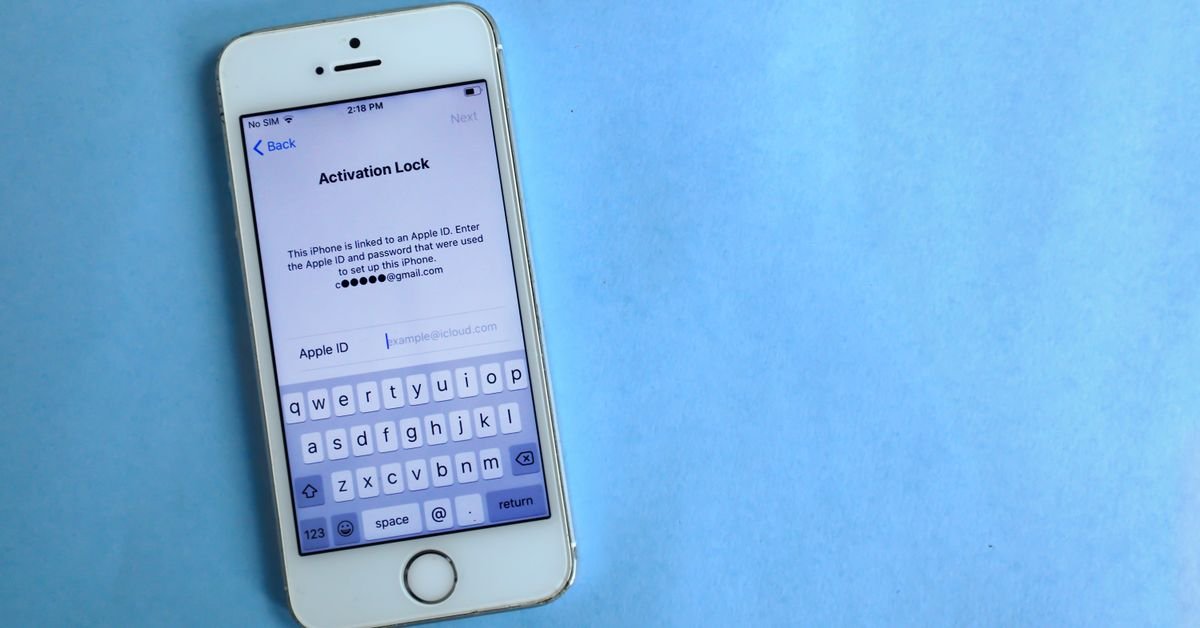
Apple’s Find My app offers the same core features — location tracking, remote lock via Activation Lock, Lost Mode, and remote erase. Activation Lock in particular makes a stolen iPhone nearly impossible to resell, since it stays tied to your Apple ID even after a factory reset.
Best Third-Party Anti-Theft Apps
| App | Platform | Standout Feature |
|---|---|---|
| Prey Anti Theft | Android & iOS | GPS/WiFi tracking, remote alarm, intruder photo capture, protects up to 3 devices free |
| Where’s My Droid | Android | Geofencing alerts and SIM-change detection |
| Crook Catcher | Android | Silently photographs failed unlock attempts |
| iAntiTheft | iOS | Alarm modes triggered by motion, unplugging, or pocket removal |
How to Set Up Theft Protection Step by Step
- Enable a strong lock screen. Use a fingerprint, face unlock, or a 6-digit PIN rather than a simple pattern.
- Turn on Find My Device (Android) or Find My (iPhone) in your account settings if it isn’t already active.
- Enable Theft Detection Lock on Android under Settings > Security > Theft Protection, if your device supports it.
- Install a dedicated anti-theft app only if you want extras like intruder photos or motion alarms beyond what’s built in.
- Back up your data regularly so a remote wipe doesn’t cost you anything irreplaceable.
What to Do If Your Phone Is Stolen
Open Find My Device or Find My from another device immediately. Lock the phone remotely first, then track its location if it’s safe to do so — never confront a thief in person. If recovery looks unlikely, trigger a remote data wipe and contact your carrier to block the SIM and IMEI.
Theft protection pairs naturally with locking down your apps directly; see our guide on how to lock apps on Android for an extra layer if your phone is ever picked up before you can wipe it. If personal safety features matter to you beyond device security, our list of best women safety apps covers SOS and location-sharing tools built for emergencies. Browse more comparisons in the App Alternatives section on TeckJBS.
Mistakes That Undermine Theft Protection
Even with the right apps installed, a few habits leave your phone more exposed than you’d expect. Skipping a lock screen PIN because fingerprint unlock “feels like enough” is risky, since some phones fall back to a PIN prompt that a thief can watch you type. Leaving Find My Device or Find My signed out, or disabling location services to save battery, makes tracking impossible exactly when you need it most. Many users also forget to update their recovery email and phone number tied to their Google or Apple account, which can delay regaining access during an actual theft. Finally, waiting too long to report a stolen device to your carrier gives a thief a wider window to use the SIM before it’s blocked.
Theft Protection for Shared or Family Devices
Theft protection gets more complicated when a phone is shared between family members or handed down to a child, since Find My Device and Find My are tied to a single Google or Apple account. If you’re setting up a phone for a child or elderly relative, consider adding them as a family member in Google Family Link or Apple’s Family Sharing, which lets you view device location and trigger a remote lock from your own account without needing their login credentials. For shared work phones, a mobile device management (MDM) profile offers centralized tracking and remote wipe across multiple devices at once, which scales better than installing a separate anti-theft app on each phone individually.
Official Sources and Further Reading
Read the official device-finding guides: Google Find Hub, Apple Find My support. TechJBS is independent and not affiliated with these organizations. Menus and features can change, so confirm details on your own device.
Frequently Asked Questions
Do I need a third-party anti-theft app if I already use Find My Device?
Not necessarily. Find My Device and Find My cover tracking, remote lock, and remote wipe for free. Third-party apps are worth adding only if you want extras like motion alarms or intruder photo capture.
What is Android’s Theft Detection Lock?
It’s a feature that uses your phone’s motion sensors to detect snatch-and-run patterns, automatically locking the screen to prevent a thief from accessing your apps before you can act.
Can a thief factory reset my phone to remove tracking?
On iPhone, Activation Lock prevents the device from being used again even after a factory reset, since it stays tied to your Apple ID. Android’s Factory Reset Protection offers similar protection if you were signed into a Google account.
Should I report a stolen phone to my carrier?
Yes. Contact your carrier to block the SIM and report the IMEI number as stolen, which prevents the phone from being used on most networks even if it’s never recovered.
Is a lock screen PIN really necessary if I have anti-theft apps installed?
Yes. A lock screen is your first line of defense and prevents immediate access to your data, apps, and accounts, regardless of what tracking or alarm apps you have installed.
Does resetting a stolen phone remove it from Find My Device or Find My?
Not if Activation Lock (iPhone) or a signed-in Google account with Factory Reset Protection (Android) is enabled. The device stays locked to your account even after a factory reset, which is exactly what deters resale.


